
Below is a quick guide on how to create and process a stocktake in the Bizzfo Hive (Cloud). By doing regular stocktakes means that the user will be able to track the stock quantities better and be sure that no stock is left uncounted.
Step 1:
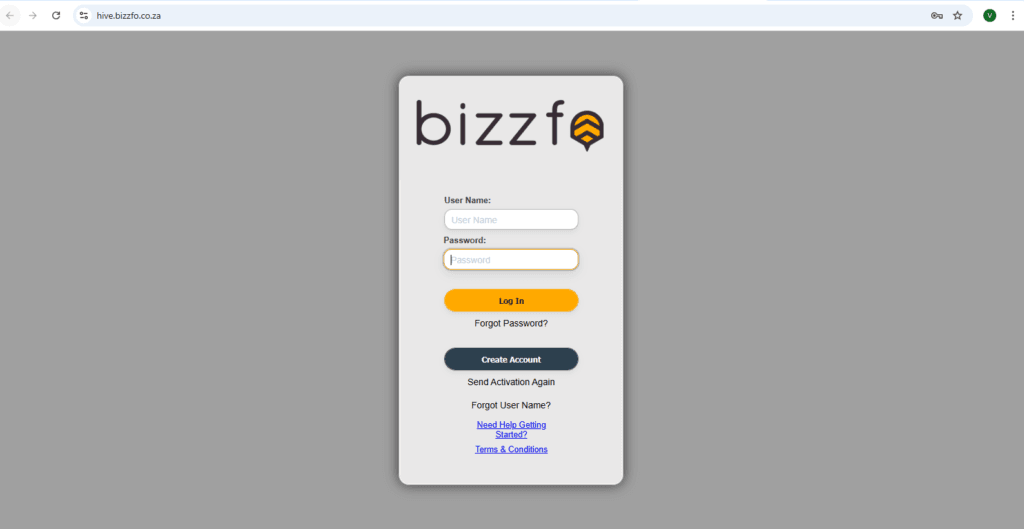
Open the Hive by visiting hive.bizzfo.co.za in your web browser and enter your unique Username and Password.
Step 2:
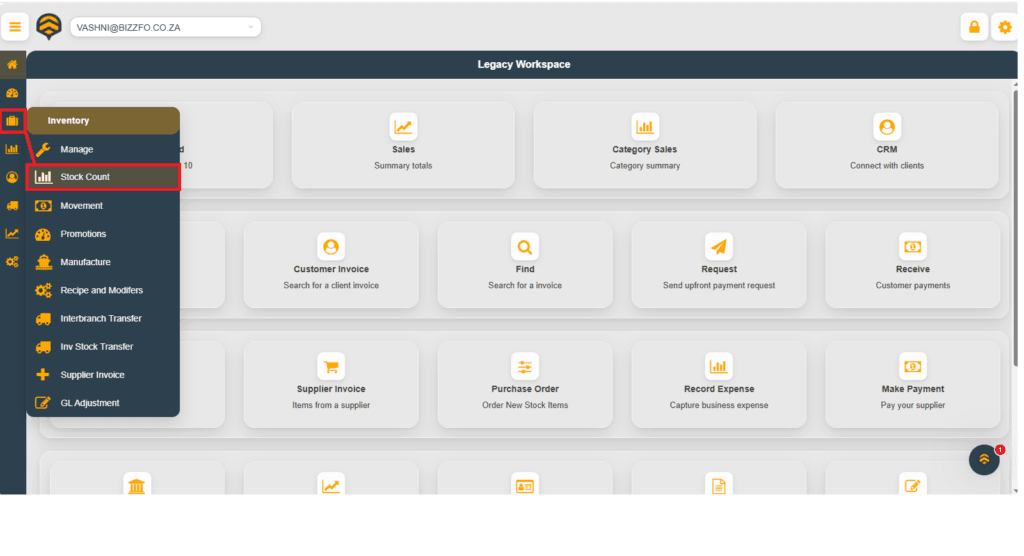
Click on the little briefcase icon (Inventory) and click on Stock Count.
Step 3:
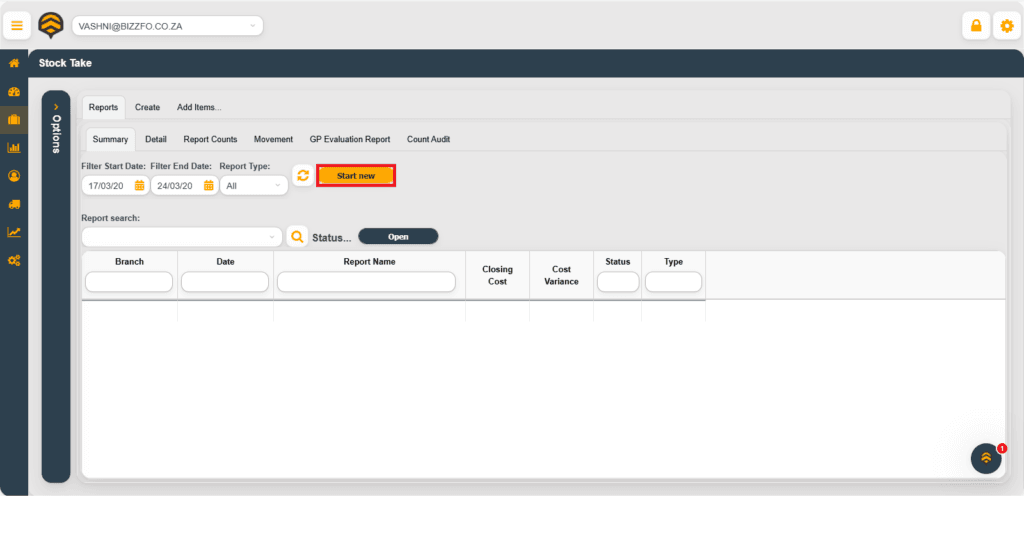
In the stock count screen, click on the Start New button to create a new Stocktake Template.
Step 4:
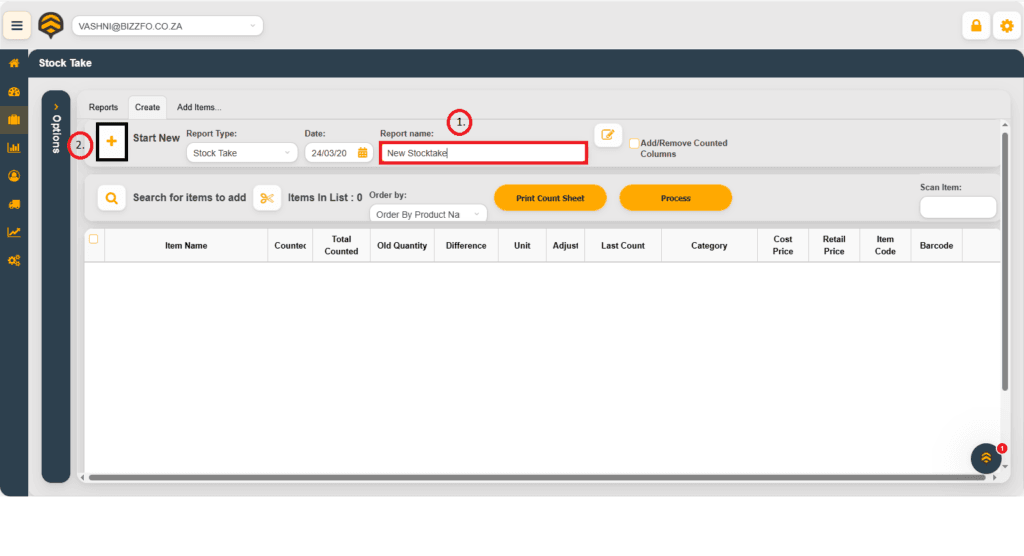
Note the following:
- Enter the stocktake name
- Click on the plus (+) icon to add the items you would like to count.
- It will give a popup “Create stocktake” which you click on Yes.
Step 5:
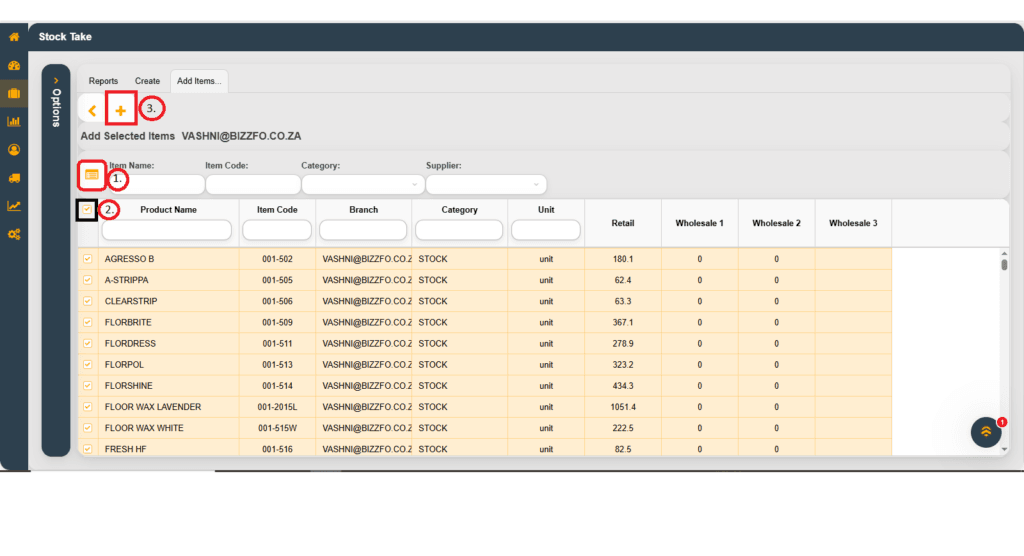
Now you add the items you wish to count. You can search it individually. However, if you wish to do a full count of all the stock, then it is best to click on the Highlighted button for all items to populate:
- Populate all inventory items to be counted.
- Select all items
- Add items to the stock template.
Step 6:
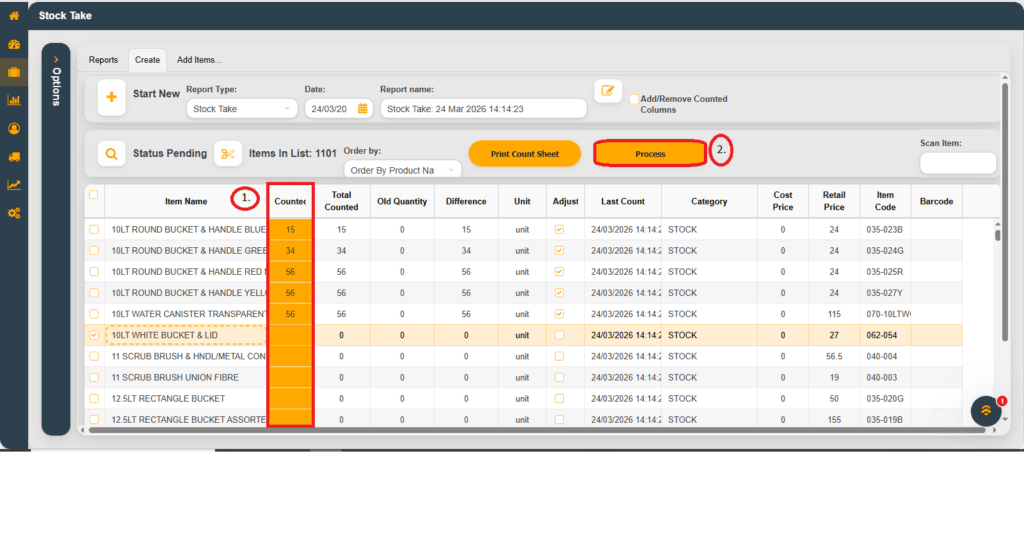
After adding the items you desire for the stock count to take place, notice the following:
- Orange Block – double click on the block next to the item to enter the counted qty
- Once all items were counted and confirmed, then click on Process to have the Stock count processed.
And Voila!! You have now successfully done your first stock count on the Hive! Well Done!


